Staff & jumpers
Manage your team and fun jumpers: roles, instructor and pilot flags, adding jumpers, credits and packages, reconciliation mode, reserve repack dates, and what staff can see.
This page covers the people side of your dropzone: your team and your fun jumpers. For USPA checks, see USPA verification.
Manage staff
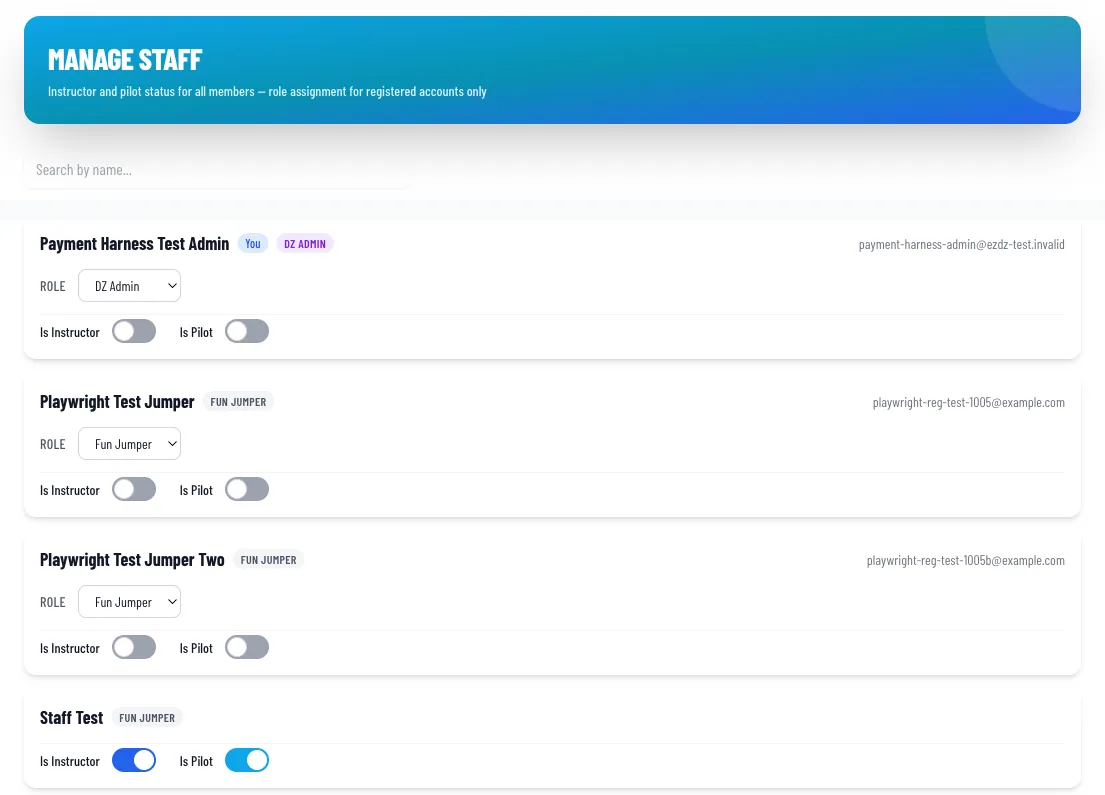
Open DZ Admin → Settings → Manage Staff. It lists everyone registered at your dropzone, with a Search by name box.
| Control | What it does |
|---|---|
| Role dropdown, then Save | Sets Fun Jumper, DZ Staff, DZ Admin, or DZ Owner. Visible to admins and owners |
| Is Instructor | Marks someone as an instructor. Saves immediately and applies to the person everywhere |
| Is Pilot | Allows them to be chosen as a pilot on loads. Per dropzone |
You can't demote the last admin or owner. DZ Staff can't hand out Admin or Owner roles.
Add fun jumpers
- One-off visitor: add them as a guest straight onto a load. No profile needed.
- Regular jumper (best): have them create their own account and register at your dropzone. Their license, canopy, reserve, and USPA info are then tracked for you, and they can sign waivers and self-manifest.
- Create a profile for them: Fun Jumpers → Add New User. This works, but they can't log in to that profile themselves, so they can't sign waivers online. License details can still be edited by you.
Tickets and credits
One credit is one fun jump. A jumper's credit balance drops by one when you manifest them, and the credit is finalized when the load goes In The Air. If you remove them from the load before then, the credit goes back. There are three ways to add credits:
- Jumper buys them. From their dashboard with a saved card. No action from you.
- You sell them. Fun Jumpers → find the jumper → Buy Credits. Enter the number and price, then take payment with the card reader or manual entry.
- Add credits manually. On the same screen, enter an amount and click Add. Nothing is charged, which is handy for comps, corrections, or cash sales logged elsewhere.
Choose how your dropzone runs credits
Credit rules apply to fun jumps (belly, freefly, wingsuit, tracking, angle, solo, and hop & pop). Tandems and AFF don't go through these credit checks.
There are four ways to run credits. Pick the one that matches how you collect money. The settings live in two places: Require Credits and Fun Jumper Ticket Price are in Dropzone settings, and the package and reconciliation switches are under Fun Jumpers → Packages & Rates.
| Mode | How it works | Use it when |
|---|---|---|
| 1. Credits not required | Anyone can be manifested. Credits aren't checked and nothing is tracked. | You collect payment some other way and don't need a balance. |
| 2. Require Credits | A jumper needs at least one credit or manifesting is blocked with "No credits available. Please purchase a ticket." | You want everyone paid up before they board. The simplest option. |
| 3. Require Credits + custom packages | Turn on Enable Custom Fun Jump Packages. Each credit remembers the price paid for it. Manifesting uses the cheapest eligible credit. A credit that costs less than the jump requires is blocked ("Your credits don't cover…"). | You sell blocks like a 10-Jump Block, or have different rates for different jumps. |
| 4. Reconciliation Mode | Manifesting is never blocked. If a jumper has no credit, the jump is recorded as an outstanding balance. You collect it on the Reconciliation tab. | You settle up at the end of the day or week, or run an honor-system or tab-based operation. |
Custom fun jump packages
Under Fun Jumpers → Packages & Rates, switch on Enable Custom Fun Jump Packages. The Base Rate card is always listed. It is one credit at your Fun Jumper Ticket Price, and you can mark it Active or Inactive. Click Add Package to create your own:
| Field | What it does |
|---|---|
| Name | Shown to jumpers, for example "10-Jump Block". Must be unique. |
| Credits | How many credits the jumper gets. |
| Price | The total price of the package, not per credit. EZDZ divides it by the credits to get the per-credit value. |
| Description | Optional. |
| Complimentary (comp) | Staff-granted only. Never shown for purchase, and Purchasable by jumpers is turned off. |
| Purchasable by jumpers | Shows the package in the jumper's buy flow. |
| Purchasable by staff | Offers the package to jumpers flagged as Instructor, for example an instructor rate. |
| Taxable | Adds your sales tax to this package. |
Each package also has an Active / Inactive switch that controls whether its credits can be used to manifest. Use it to turn off standard tickets during a boogie without deleting anything. You can also Edit or Remove a package.
Reconciliation Mode
Turn on Reconciliation Mode in Fun Jumpers → Packages & Rates ("Track outstanding balances for end-of-day or end-of-week payment collection"). A Reconciliation tab then appears next to Jumpers and Packages & Rates.
What gets tracked
- Unpaid jumps. A jumper with no credit is still manifested. The price of that jump is recorded against them as an outstanding balance.
- Upgrade differences. A jumper holding a cheaper credit can still manifest on a pricier jump. With Allow Credit Upgrades on (it needs Reconciliation Mode), the difference is recorded as outstanding. With it off, the cheaper credit simply covers the jump and no difference is recorded, so turn it on if you want to collect the gap.
- If a jumper is removed from the load before takeoff, an unsettled deficit for that jump is deleted and a reserved credit returns to their balance.
Collect the money. Open Fun Jumpers → Reconciliation. Each jumper with something owed shows their credit balance and the total, with an "upgrade diff" and "unpaid jumps" breakdown. Click Details to see which jumps made up the balance. Click Collect Payment and choose Cash or Card / Terminal. Once recorded, the balance is settled and the jumper leaves the list. The tab shows No Outstanding Balances when everyone is settled up, and Refresh reloads it.
Edit a jumper and keep reserve dates current
Open Fun Jumpers, find the jumper, and click Edit to update nickname, canopy size, exit weight, license, and the reserve repack date. The system checks the repack date when manifesting and flags out-of-date reserves, so keeping it current avoids last-minute holds. Remove jumpers from the roster when they leave.
Waivers
Waivers are set up under Settings → Waivers (admins). It's a one-time Enable Waiver Integration step, then you choose templates and rules.
| Setting | Options and default |
|---|---|
| When to Send Tandem Waivers | With the booking confirmation email (default), as a separate email, manual only, or disabled |
| Fun Jumper Waiver Workflow | Dashboard, signed by the jumper (default), email on request, auto email, or admin sends |
| Show waiver status in fun jumper dashboard | On by default. Shows alerts when invalid or expiring within 30 days |
| Require Valid Waiver to Manifest | Off by default. Blocks manifesting without a valid waiver |
| Allow Admin Override | On by default. Staff can override the requirement at manifest time |
| Grace Period (days after expiration) | 7 by default, up to 30 |
Click Manage Waivers to open the waiver tool in a new tab.