Aircraft & gear
Add and edit aircraft, set capacity and maintenance tracking, log hours, and manage dropzone-owned rigs. Capacity is copied into every new load.
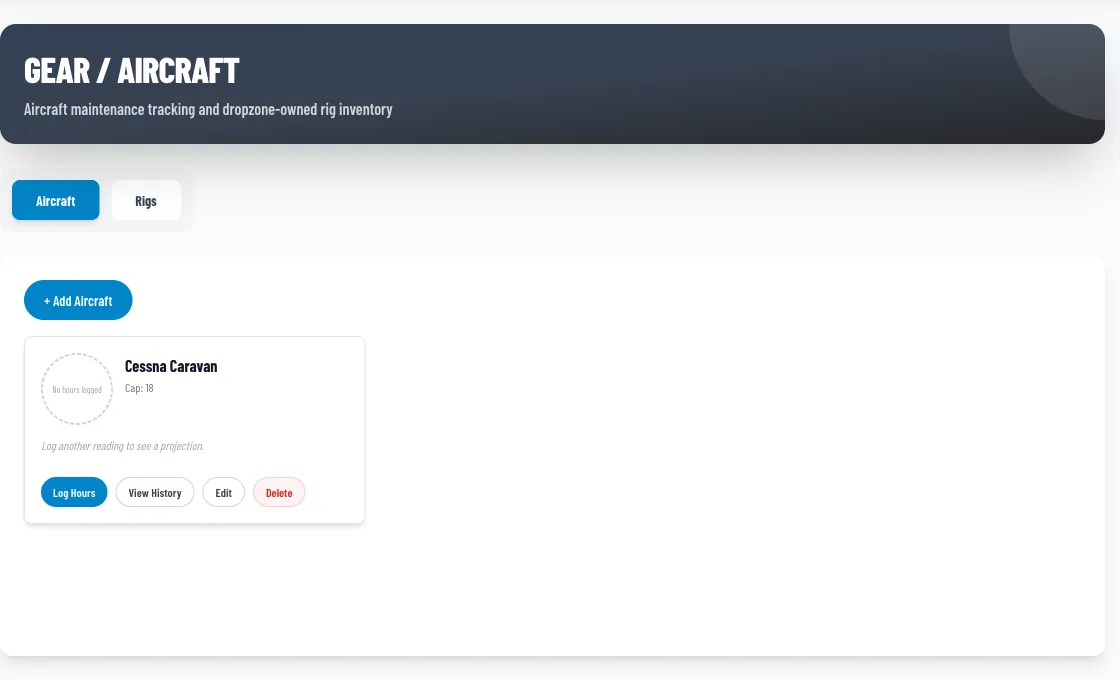
Aircraft live under DZ Admin → Gear/Aircraft, in the Aircraft tab. The same screen has a Rigs tab for dropzone-owned gear. Staff can use this screen too.
Add an aircraft
- Go to Gear/Aircraft and stay on the Aircraft tab.
- Click + Add Aircraft to open New Aircraft.
- Fill in the fields below and save.
Aircraft Name
Admin only- Where:
- New Aircraft
- Default:
- None (required)
Must be unique among your active aircraft. If you reuse a name you'll see "Aircraft with this name already exists at this dropzone."
Capacity
Admin only- Where:
- New Aircraft
- Default:
- 4 (required)
Seats available on each load, from 1 to 50. Count everyone who needs a slot: jumpers, tandem students, and instructors.
Model
Admin only- Where:
- New Aircraft
- Default:
- Empty
Optional, for example "Cessna 182".
Tail Number
Admin only- Where:
- New Aircraft
- Default:
- Empty
Optional registration, for example "N123AB". There is no separate "registration" field. This is it.
Maintenance Hour Interval
Admin only- Where:
- New Aircraft
- Default:
- 100
How many flight hours between inspections. Drives the maintenance gauge below.
Maintenance Notes
Admin only- Where:
- New Aircraft
- Default:
- Empty
Free text. Long notes are shortened on the card; click to expand.
Capacity and loads
Booking time slots have their own Max Bookings number. It is not linked to aircraft capacity. See Booking system.
Create a load
- Go to Loads and click Add New Load.
- Pick your aircraft. The list shows each aircraft's capacity.
- Optionally set an Estimated Takeoff Time and a Pilot. Only people flagged Is Pilot appear.
- Click Create. The load opens right away for manifesting.
If you have no active aircraft, Create Load is disabled and a red message tells you to add one. See Manifest & loads for what comes next.
Edit, deactivate, or delete an aircraft
- Edit: open the aircraft card and change any field. Edits include an Active switch.
- Deactivate: turn Active off. The aircraft shows an Inactive badge, disappears from new-load creation, and can be turned back on any time.
- Delete: removes the aircraft from the screen and from load creation. Past hour logs stay in the database, but the aircraft can't be recovered from the UI, so prefer deactivating.
Track maintenance hours
Click Log Hours on an aircraft card to record a reading.
| Field | Notes |
|---|---|
| Reading (hrs) | The aircraft's total time, in steps of 0.1 |
| Date | Defaults to today |
| Note | Optional |
| Mark as inspection completed | Resets the maintenance gauge from this reading |
The card shows a gauge against your interval, your pace in hours per day, and a projected due date. A strip at the top of the page flags aircraft that need attention: amber at 70% of the interval and red at 90%. You can see the history and delete an entry if you logged it by mistake.
Rigs
The Rigs tab tracks dropzone-owned gear.
| Field | Notes |
|---|---|
| Name and Type | Required. Types: Student, Rental, Tandem, Other |
| Serial Number | Optional |
| Container size and color, Canopy size and color | Optional |
| Reserve Pack Date and Reserve Expiration Date | Rigs are flagged amber within 30 days of expiry and red once past it |
| Notes and Active | Optional |