Public Display & TV mode
Put a live load board on a TV in your loading area. What the Public Display shows, how to open full-screen TV mode, the weather pop-up, and the URL options.
EZDZ has two live load boards that jumpers and customers can read without asking the manifest desk: the Public Display and a full-screen TV mode. Both update as you manifest, call, hold, and launch loads. They are display-only, so there is nothing on them to change, and they are built from the public load board, which leaves out contact details and credits.
Pick the right one
| Public Display | TV mode | |
|---|---|---|
| Where | Public Display in the top navigation | TV Mode button on the Public Display, or the /tv address |
| Made for | A laptop, tablet, or phone | A TV or large monitor in the loading area |
| Shows | The load in the air, the next loads, winds, and the exit order | Every active load as a card with its estimated exit order |
| Weather | Always on screen | Pops up now and then |
Public Display
Click Public Display in the top navigation. You get:
- The load that is In The Air, with a running timer since takeoff.
- Up to three active loads as cards (Manifesting, On Call, or On Hold) with their call stage and countdown to the estimated takeoff. More loads are listed in a compact Upcoming list beside them.
- A live winds and weather panel for your dropzone.
- The Exit Order Manifest.
- A clock in your dropzone's timezone, and a dropzone selector if you have more than one.
TV mode
Open TV mode in either of two ways:
- On the Public Display, click TV Mode (the TV icon, top left).
- Or go straight to the
/tvaddress on your EZDZ app link.
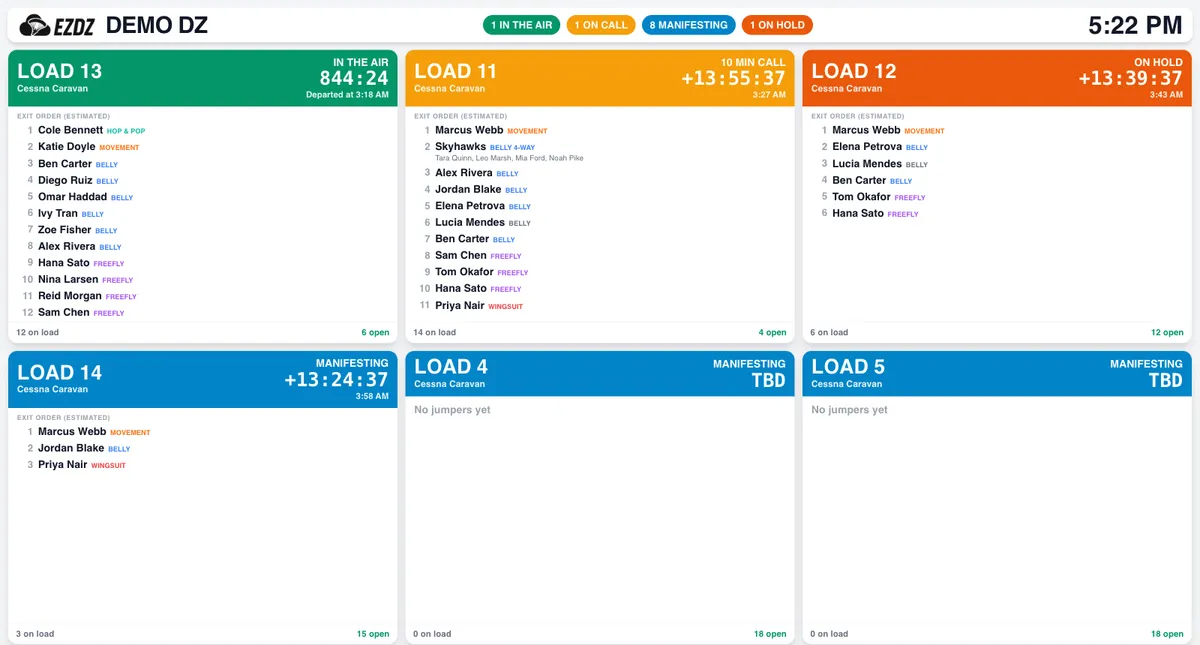
What's on the board
- Header: your dropzone name, a count of loads by status, and the clock in your timezone.
- One card per active load: In The Air, On Call, On Hold, and Manifesting. Landed loads are not shown.
- Status and timer: each card shows its status and a timer. A load in the air counts up from takeoff and shows when it departed. Other loads count down to the estimated takeoff, and a
+in front means the load is running late by that much. - Call stage: 15 MIN CALL, 10 MIN CALL, 5 MIN CALL, or NOW CALL. The card turns red at 5 minutes and under.
- Estimated exit order: the people on the load in exit order, with their jump type, plus how many are on the load and how many slots are open. Groups show their members underneath.
| Card color | Meaning |
|---|---|
| Green | In the air |
| Amber | On call |
| Red | On call, 5 minutes or less |
| Orange | On hold |
| Blue | Manifesting |
Size and paging
The board fits the screen. A phone shows one card, and a big TV shows up to five columns and two rows. If you have more active loads than fit, it flips through them every 20 seconds and shows Page 1 of 2 with the number of loads at the bottom.
Weather pop-up
By default the board shows the jump conditions for 10 seconds every minute: winds and gusts at 0, 3,000, 6,000, 10,000, 13,000, and 15,000 ft, plus a Windy map. The forecast is for general reference only, so always check the weather yourself before jumping or flying. It uses your dropzone's latitude and longitude, so make sure they are set in Dropzone settings.
You can change the timing with options on the address, in seconds:
| Address | Result |
|---|---|
/tv | Default: weather 10 seconds, every 60 seconds |
/tv?weather=30&weatherFor=5 | Show the weather for 5 seconds, every 30 seconds |
/tv?weather=off | Never show the weather |
Controls
Move the mouse or tap the screen and the controls appear for about 4 seconds, in place of the status counts:
- A theme button to cycle light, dark, and system.
- A dropzone picker, only if you have more than one dropzone.
- Exit TV mode, which takes you back to the Public Display.
The dropzone you choose is remembered on that browser, and it is shared with the Public Display.
Set up a TV
- Open a browser on the TV or on a computer plugged into it. Any modern browser works.
- Go to your EZDZ app link followed by
/tv. Add?weather=offif you don't want the weather. - Make it full-screen. Press F11 (or your browser's full-screen option) so the browser bars are hidden.
- If you have more than one dropzone, pick yours. Move the mouse to reveal the picker. It stays selected next time.
Troubleshooting
| Problem | Try this |
|---|---|
| The board is empty | There are no active loads. Create one under DZ Admin → Loads. Landed loads are hidden. |
| It shows the wrong dropzone | Move the mouse to show the dropzone picker, or use the selector on the Public Display. |
| No weather appears | Check that the dropzone has a latitude and longitude, and that you didn't use ?weather=off. |
| The numbers look stuck | Refresh the page. If it keeps happening, email door@ezdz.xyz. |