Booking system
Set up your online tandem booking page: weekly schedule, overrides for weather and closures, packages and add-ons, coupons, gift certificates, and the website embed code.
Everything customers see on your booking page is configured in one place: DZ Admin → Settings → Booking System Config. It has seven tabs. This page covers all of them and links out to payments and email, which have their own guides.
| Tab | What it controls |
|---|---|
| General Settings | Page URL, on/off, contact info, branding, rules |
| Schedule & Availability | Weekly time slots and one-off overrides |
| Pricing & Packages | Packages, prices, add-ons |
| Coupons & Gift Certs | Discount codes and gift certificates |
| Payment Settings | Stripe, deposits, fees, plan. See Stripe & payments |
| Email Settings | SMTP and templates. See Email setup |
| Preview & Embed | Live preview and website embed code |
General settings
Booking URL Slug
Admin only- Where:
- General Settings
- Default:
- From your dropzone name
Your booking page lives at /booking/{slug}, for example https://ezdz.xyz/booking/skydive-buckeye. Change it only if you must, because links you've shared will stop working.
Status: Active
Admin only- Where:
- General Settings
- Default:
- Off for a brand-new booking page
The booking page only accepts bookings while this is on. If customers can't see your booking page, check this first.
Contact Email and Contact Phone
Admin only- Where:
- General Settings
- Default:
- Empty
Shown on the booking page and in confirmation emails.
Email me when new bookings come in
Admin only- Where:
- General Settings
- Default:
- On
Staff notifications for new bookings and gift certificate purchases. Customer emails aren't affected. Send notifications to defaults to your contact email; enter another address to send notifications elsewhere without changing the public contact email.
Review Link
Admin only- Where:
- General Settings
- Default:
- Empty
A Google or Yelp review URL included in the post-jump review request email.
Custom Logo URL, Font Family, Primary and Secondary Color
Admin only- Where:
- General Settings
- Default:
- Blue and system font
Branding for the booking page and emails. The logo is a URL, not an upload, so host the image on your website and paste the link. Fonts: System UI, Inter, Roboto, Open Sans, or Lato.
Minimum Age and Maximum Weight (lbs)
Admin only- Where:
- General Settings
- Default:
- 18 and 250
The limits shown to customers before they book.
Require Phone Number and Require Emergency Contact
Admin only- Where:
- General Settings
- Default:
- On
Collected during checkout so your team has them on jump day.
Terms and Conditions Text, Confirmation Message, Custom Requirements
Admin only- Where:
- General Settings
- Default:
- Empty or default
Your waiver and deposit language, the message shown after booking, and any extra checkboxes you want customers to accept. Each requirement can be marked Required.
Schedule and availability
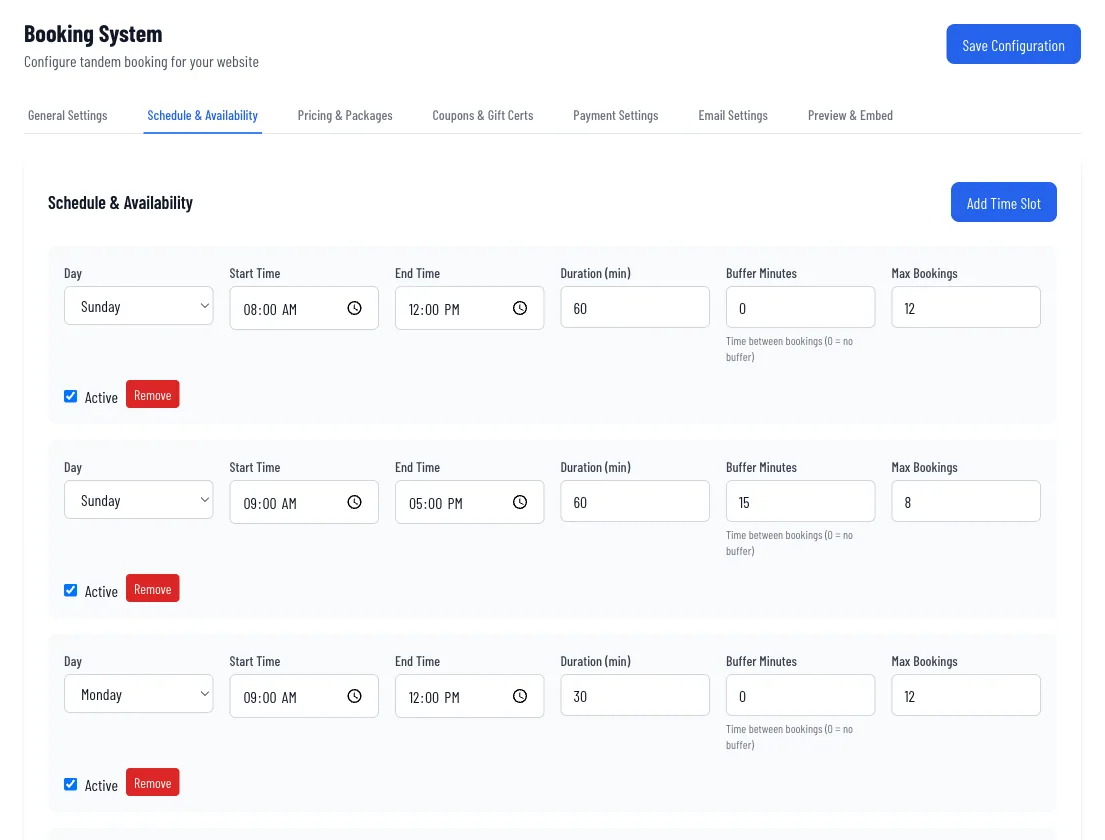
Each row in Schedule & Availability is one continuous availability window on one weekday. EZDZ generates individual bookable times inside that window using your duration and buffer.
- Click Add Time Slot and choose the Day, Start Time, and End Time.
- Set Duration (min). This is how often a time appears.
60gives one time every hour,120every two hours. - Set Buffer Minutes if you want a gap between back-to-back times.
- Set Max Bookings to cap how many tandems can book each time.
- Switch the row to Active. Inactive rows don't appear on the booking page.
- Click Save Configuration.
For example, a 10 AM to 4 PM window at 60 minutes gives times at 10, 11, 12, 1, 2, and 3.
Max Bookings
Admin only- Where:
- Schedule & Availability
- Default:
- 8 for a new row
The most tandems that can book into one time. It counts people, not groups: a group of four counts as four. It applies to tandem bookings through the booking page only, and has nothing to do with aircraft capacity. Leave it blank for no limit.
Duration (min)
Admin only- Where:
- Schedule & Availability
- Default:
- 60
Between 15 and 180 minutes.
Buffer Minutes
Admin only- Where:
- Schedule & Availability
- Default:
- 15
Time between bookings, from 0 to 60. 0 means no buffer.
Removing a time slot row deletes it immediately.
Schedule overrides
Overrides change one specific date without touching your weekly template. Find them at the bottom of Schedule & Availability under Schedule Overrides.
- Click Add Override.
- Choose Single Date or Date Range, then pick the date or dates.
- Choose an Override Type.
- If it applies to specific times, pick the Time Slot. Leave it blank for all slots.
- Optionally add a Custom Message shown to customers, such as "Weather hold".
- Click Check Affected Bookings to see anyone already booked in that window.
- Click Save Override.
| Override type | Use it to |
|---|---|
| Block Entire Day | Close a whole day: weather, holiday, plane maintenance, off-season |
| Block Specific Time Slots | Close only certain times |
| Reduce Capacity | Lower Max Bookings for a slot |
| Add Additional Availability | Open a time you don't normally offer, such as a sunset jump |
| Extend Hours | Offer times past your usual close for a busy day |
Reopening early? Find the override in Active Overrides and delete it. Availability returns to the booking page right away. A date range creates one override per day.
Pricing and packages
A package is a product customers choose when booking, such as "Standard Tandem". Add-ons (handcam, outside video, photos) hang off a package.
Create a package
- Open Pricing & Packages and click Add Package.
- Enter the Package Name, Base Price, and Description.
- Choose which Available Days it runs.
- Click Add Add-on for each extra, with its name and price.
- Click Save Configuration.
Package Name
Admin only- Where:
- Pricing & Packages
- Default:
- New Package
Each package name is unique per dropzone. Renaming a package creates a new package rather than renaming the old one, so remove or deactivate the old one afterward.
Base Price
Admin only- Where:
- Pricing & Packages
- Default:
- 269 for a new package
The package price in your dropzone currency.
Taxable
Admin only- Where:
- Pricing & Packages
- Default:
- Off
Whether tax applies to the base price. Add-ons have their own Taxable checkbox. Turn on tax collection in Dropzone settings.
Active
Admin only- Where:
- Pricing & Packages
- Default:
- On
Turn off to hide a package without deleting it. Use this for seasonal products.
Package Photo URL
Admin only- Where:
- Pricing & Packages
- Default:
- Empty
Optional image link. Square or 16:9 works best.
Restrict to specific times
Admin only- Where:
- Pricing & Packages
- Default:
- Off
Limits when a package is offered. Set From and Until times. A customer only sees the package when their chosen time falls inside the window. Example: make a "Sunset Skydive" visible from 4:30 PM so a 3 PM customer sees only your regular packages and a 5 PM customer sees both.
Display Order
Admin only- Where:
- Pricing & Packages
- Default:
- Position in list
Lower numbers appear first.
Coupons and gift certificates
The Coupons & Gift Certs tab has two buttons: + Coupon and + Gift Cert.
| Item | Fields |
|---|---|
| Coupon | Code (like SUMMER20), Name, Discount Type (percentage, fixed amount, or comp a package), amount, Max Uses (blank is unlimited), Expires, Active |
| Gift certificate | Card Title, Type (gift card amount or package comp), amount or package, Expires, Active |
Each row has Share, which creates a QR code and a ready-to-print card (minimal, dark, or branded) with Copy Link, Download QR, and Print / PDF. Coupon links look like /booking/{slug}?coupon=CODE, which pre-fills the code. Customers can also type a code at checkout under Have a coupon or gift certificate code?
Preview and embed
The Preview & Embed tab shows a live preview of your booking page. Open in new tab opens it full size.
Put it on your website
- Make sure the booking page is Active (see General Settings).
- Click Copy Embed Code.
- Paste it into your website's HTML where you want the booking form to appear.
- Reload your site and book a test.
The code looks like this. Copy yours from the tab rather than retyping it, because it includes your slug and dropzone name:
<!-- EZDZ Booking Widget -->
<div id="ezdz-booking-container"></div>
<script
  async
  src="https://ezdz.xyz/booking-embed.js"
  data-slug="your-slug"
  data-dropzone-name="Your Dropzone">
</script>
The widget sizes itself, works on phones and tablets, and shows a small "Powered by EZDZ" link. There is a matching Gift Certificate Embed Code for selling gift certificates from your site.