Email setup
Connect your SMTP account so booking confirmations, reminders, and review requests send under your dropzone's name. Includes Gmail and Outlook settings, test steps, and the automated templates.
Booking confirmations, reminders, abandoned-booking follow-ups, and review requests are sent from your email account, so customers see your dropzone's name. You connect an SMTP account once.
Before you start
- Finish your branding first in Booking System Config → General Settings: logo URL, colors, contact email, contact phone, and review link. Emails use them.
- Get SMTP details from your email provider. A dedicated address like
bookings@yourdropzone.comworks best.
| Provider | SMTP host | Port | Notes |
|---|---|---|---|
| Gmail | smtp.gmail.com | 587 | Turn on 2-step verification and create an App Password. Use that as the password |
| Outlook / Microsoft 365 | smtp-mail.outlook.com | 587 | Use your full email as the username |
| Your own domain | From your host | 587, 465, or 25 | Port 587 with TLS is the usual choice |
Connect your email
- Go to DZ Admin → Settings → Booking System Config → Email Settings.
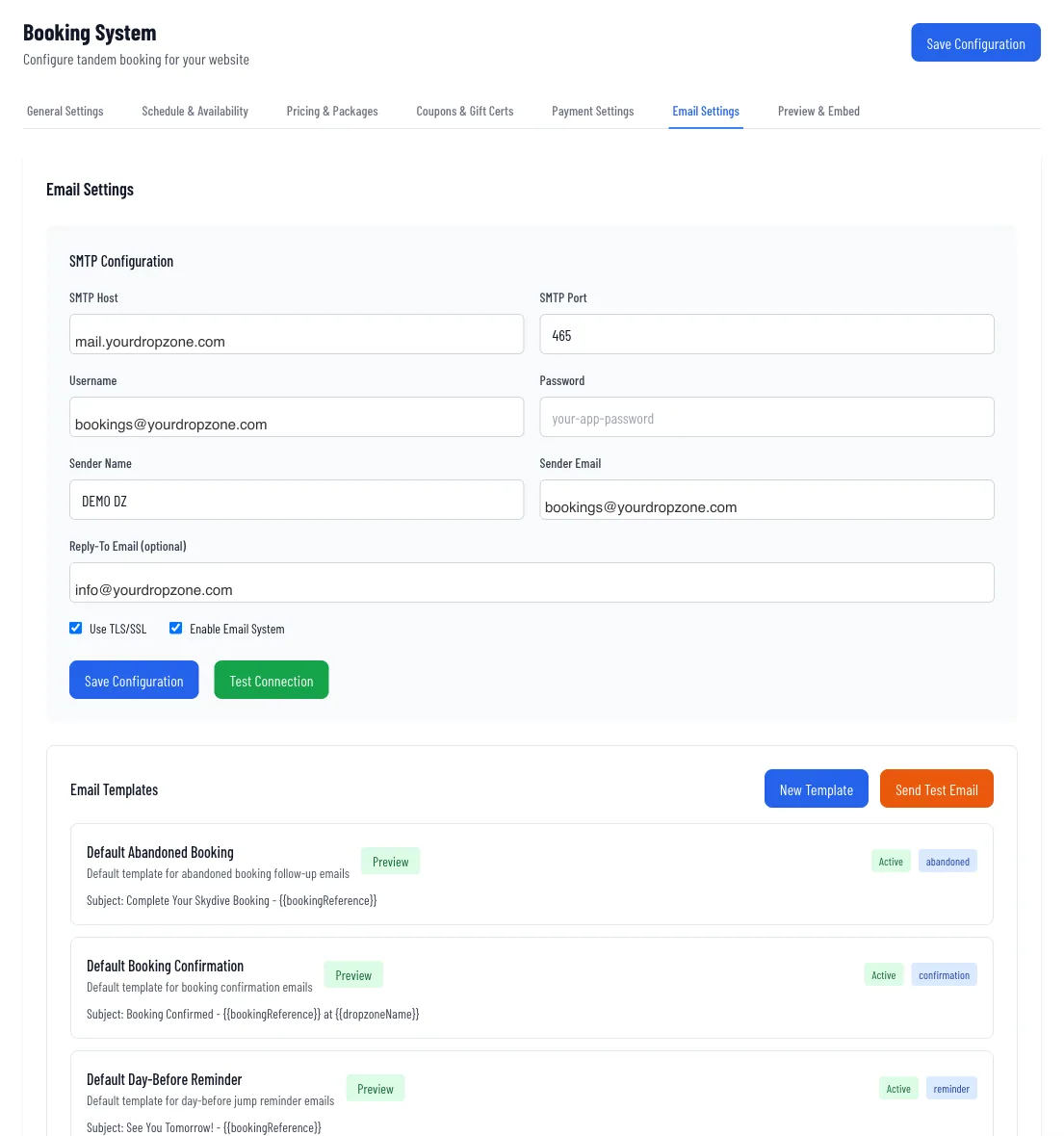
- Under SMTP Configuration, fill in the fields below.
- Tick Use TLS/SSL and Enable Email System.
- Click Save Configuration.
- Click Test Connection. You should see "SMTP connection test successful."
- Click Send Test Email and enter your own address to confirm it arrives.
SMTP Host and SMTP Port
Admin only- Where:
- Email Settings
- Default:
- Port 587
The server address and port from your provider.
Username and Password
Admin only- Where:
- Email Settings
- Default:
- Empty
Your SMTP login. For Gmail, use an app password, not your normal password. The password is stored encrypted and is optional when you edit settings later.
Sender Name and Sender Email
Admin only- Where:
- Email Settings
- Default:
- Empty (required)
The "From" name and address customers see.
Reply-To Email
Admin only- Where:
- Email Settings
- Default:
- Empty
Optional. Where customer replies go.
Enable Email System
Admin only- Where:
- Email Settings
- Default:
- Off for a new setup
Turn this on, or no emails are sent even if the connection tests fine.
Templates and automations
The first time you save your email configuration, EZDZ creates four templates and turns on four automations for you:
| Automation | Sends | When |
|---|---|---|
| Booking Confirmation | Default Booking Confirmation | Right after a booking is created |
| Day-Before Jump Reminder | Default Day-Before Reminder | 9:00 AM the day before |
| Abandoned Booking Follow-up | Default Abandoned Booking | 30 minutes after an unfinished booking |
| Post-Jump Review Request | Default Review Request | 60 minutes after the load lands |
Open a template to Preview, Edit, or Send test to your inbox. Use New Template to create your own (types: Confirmation, Reminder, Thank You, Review Request, Custom). Templates support merge fields such as {{customerName}}, {{bookingReference}}, and {{paymentUrl}}. The editor lists them all.
Staff notifications are separate
New-booking alerts to your team are controlled in General Settings with Email me when new bookings come in and Send notifications to. They don't need SMTP. See Booking system.
Keeping email healthy
- Send a test email every so often, and after any password change.
- If your email provider forces a password change, update the Password here and run Test Connection again.
- Not seeing emails? See Troubleshooting.